Browsed by
Category: Docs & FAQ

MyVoipApp documents and FAQ

SIP trunk between MSSes

SIP trunk between MSSes

1. Description

Some customers have several office branches and hope to establish VoIP connections between them. There are several methods to do that. Here we give an example to describe how to establish voip connections between two MSSes with SIP trunk feature.

2. Network topology

The network topology is simple. There are two office branches. Please refer to below figure.
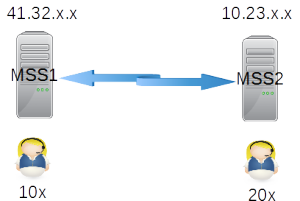
Demo network
Demo network

Before we setup voip network, it is better to assign extension numbers. Different office numbers will effect how to configure call routing in both MSSes. In above figure, we can see the extensions in office 1 are 1xx, and extension numbers in office 2 are 2xx.

Both MSSes are configured with public IP address. If your MSS is behind NAT or router and you want to provide connection for outsides users, please refer to another document firstly.

Now we give detail configurations for it.

3. Configuration

In below configurations, items should be kept their default values if we don’t configure them obviously.

3.1 MSS1

Please click menu “data – SIP trunk”, then add a record:

SIP trunk ID = 1
Description = to MSS2
Server address = 10.23.x.x

Please click menu “dial plan – analyzed called number” , then add a record for routing 2xx to such SIP trunk.

called number prefix = 2
route type = SIP trunk
SIP trunk ID = 1

3.2 MSS2

It is almost same with MSS1.

Please click menu “data – SIP trunk” to add a record.

SIP trunk ID = 1
Description = to MSS1
Server address = 41.32.x.x

Please click menu “dial plan – analyzed called number” for routing calls to above SIP trunk.

called number prefix = 1
route type = SIP trunk
SIP trunk ID = 1
activate STUN in csipsimple

activate STUN in csipsimple

csipsimple is a very good sip client software in Android, we often suggest our customers to use it if they want to deploy voip network with Android phones.

As we know, there are always one-way or no-way audio problem. To solve this problem, STUN should be configured in softphone. But some customers often response it is hard to set STUN in csipsimple.

In fact, it is easy to do that. Please follow below steps which are described in csipsimple website too:

(1) Go on setting Settings > Network – Tick “Use Stun” and fill a stun server on the field bellow. If you are cloud-mss subscriber, you can use your virtual server address as your STUN server too. Of course, you can use csipsimple default STUN server.

(2) You can also try to use ICE in addition to STUN if STUN alone doesn’t solve the problem : Settings > Network – Tick “Use ICE”.

Refine called number

Refine called number

V14.4 is updated to support a new feature in “dial plan” process. This feature is “refine called number”.

“Refine called number” can be used to refine called number before calls are routed to external lines or SIP trunks. It is the last chance to change called number to fit different requirements from peer VoIP servers.

For example, one of our customer has two VOIP accounts. One is from local provider, another is from international provider. These two VoIP providers have different number format requirements, and our customer only want to has one kind of dial plan for both of them. So we can configure “refine called number” to refine the final destination number to fit it. This scenario is illustrated below.

Scenario

As described above, there are two VoIP accounts, and users need dial “90xxxx” to make outbound calls. “9” is MSS default outgoing call prefix. “0” is required by local VoIP provider. At the same time, the international VoIP provider requires that the number format should be “0086xxxx”.

After compare these number formats, we can find that we only need change prefix “0” to “0086” for international VoIP account.

Step 1: configure an independent “outgoing group ID” for international VoIP account

Please click menu “Data / External line” and select the account to edit, then please click “Outgoing call” tab and configure following item:

Outgoing group ID = 1

Step 2: configure “number transition”

We need configure a new record to change preifx “0” to “0086”. Please click menu “Dial plan / Transition” to add a new record:

Transition ID = 1
Transition type = Replace
Start position = 0
Length = 1
Replace string = 0086

Step 3: refine called number for specific outgoing group

Please click menu “Dial plan / Refine called number” to add a new record:

Outgoing group ID = 1 <== defined in step 1
Called number prefix = 0
Transition ID = 1 <== defined in step 2

Here we maybe have a problem: the called number prefix is “0”, why? why not analyze “9” prefix? It is because that “9” has been deleted in “analyze called number” procedure and the number has been changed to “0xxxx” before it is sent to external line or SIP trunk, so we should analyze prefix “0” to refine final called number.

Two external lines, how to use specific one by dialing different called number prefix?

Two external lines, how to use specific one by dialing different called number prefix?

Description

One of our customers has two different VoIP accounts, for example (1) 1234 and (2) 5678. It is required to select account “1234” if users dial “9xxxx” numbers and select account “5678” if users dial “8xxxx” numbers. The final numbers should delete these prefix “9” or “8” and “xxxx” should be sent to VoIP providers.

Solution

We can use MSS powerful “dial plan” features to fit this requirement.

By default, MSS uses called number prefix “9” to distinguish outgoing calls to outsides. If there are several external lines and without any special configuration, MSS will select one of them in round-robin for each call. Now what we need do is to configure different called number prefix and select different external line for them.

Step 1: configure number transition

In this step, we need configure a record to delete number prefix “8” or “9” from called numbers. Please click menu “Dial plan / Transition” to add a record illustrated below.

Transition ID = 1
Transition type = delete
Start position = 0
Length = 1

Step 2: add new “Analyze called number” records

According to requirement, we need indicate MSS to analyze called number prefix “8” and “9” to use different specific external line. Please click menu “Dial plan / Analyze called number” to add two records.

Record 1: analyze called number prefix “9”

Dial plan = default
Called number prefix = 9
Route type = external line
Specific external line = 1234 <== use specific external line
Change called number = yes
Transition ID = 1 <== configured in step 1
Re-analyze after transition = no

Record 2: analyze called number prefix “8”

Dial plan = default
Called number prefix = 8
Route type = external line
Specific external line = 5678 <== use specific external line 
Change called number = yes
Transition ID = 1 <== configured in step 1
Re-analyze after transition = no
Trigger hunt-group for external lines incoming calls

Trigger hunt-group for external lines incoming calls

Some customers use external lines to connect VoIP providers’ servers. So it is required to trigger hunt-group for all incoming calls from such external lines.

Lets’ assume the external line number/account is ‘123456’, so we just need trigger HG service according to this number.

Please click menu “services / multi-line hunting group / Detection configuration” to add a new record as following:

dial plan = default
called number = 123456 <-- this is the external line number
... ...

Others are same with HG service document:

http://www.myvoipapp.com/docs/mss_services/hunting_group/index.html

If the external line is configured with auto-attendant or routed to another destination number, what is the result? Don’t worry. HG detection has higher priority than these services, that means HG will be triggered even you configured AA or destination number in external line.

How to change TCP port?

How to change TCP port?

2013-09-23 updated: with latest V14.2, we can configure ‘TCP port’ in MSS. Please refer to following document:

http://www.myvoipapp.com/docs/mss_services/sip-over-tcp/index.html#tcpPort

——————————————————————-

By default, MSS starts 5060 TCP port to receive or send SIP over TCP messages. 5060 is default TCP port defined by SIP standard. In MSS GUI or web UI, we can only change SIP UDP port.

If we want to change its TCP port, for example, we want to change it to 1234, we need do as following:

(1) In the MSS install directory, please create a text file whose name is ‘mss_var_param.ini’ file.

(2) In this INI file, please add following content:

[sip]
gVarSipTCPPort=1234

(3) Please restart MSS to enable it.

Reports in MSS

Reports in MSS

2020-12-29 updated: Since miniSIPServer has ‘event channel‘ function to provide users’ status and details of each call, customers can use these information to build their own reports, so we cancel these functions from V38.

Most SIP or PBX devices may have some reports to help administrator to check system’s status.

MSS has some reports too. Please click menu “Reports” to show them. MSS has two reports at this time:

(1) Basic call report

(2) Local user report

Both these reports are generated per hour. If there is not any value for each item, then the report will not be generated.

“Local user report” is simple. It only calculates how many local users are online per hour.

“Basic call report” is used to calculate how many calls MSS has been processed in one hour. There are some important items, such as “attempt”, “alert”, and “answer” and so on. It includes total durations and it can help administrator to understand how many calls have been answered and the avarage duration in one hour. If there are too many calls to make MSS heavy work-load, administrator can decide to upgrade MSS.

How to run miniSIPServer on Ubuntu?

How to run miniSIPServer on Ubuntu?

Updated: Now you can visit online document for more details.


If you are using Ubuntu (desktop), it is very easy to run MSS. Just download .deb file from our website and double click such .deb file to install it. Then you can find MSS icon in ‘internet’ or ‘network’ menu group and run it to start MSS.

If you are using Ubuntu (server), something is different. You need do more steps to install and run MSS. We describe details below.

First, you must download .deb file from our website, for example ‘mss_v13_u20.deb’. Then, you can run following command:

sudo dpkg -i mss_v13_u20.deb

At this step, Ubuntu will prompt error that some dependencies must be installed. Don’t warry, please continue following command:

sudo apt-get -f install

Then Ubuntu will try to get and install all necessary dependencies from Ubuntu software center.

In Ubuntu server, you cannot run MSS GUI since X windows is not started. You can run MSS CLI version whose file name is ‘msscli’ and can be found in directory ‘/opt/sipserver’.

So it is very easy to start MSS now:

/opt/sipserver/msscli

To visit and manage MSS system, you need visit its web system whose TCP port is 8080 by default. Please refer to following document:

http://www.myvoipapp.com/docs/mss_services/web_management/index.html
I cannot find my external lines, why?

I cannot find my external lines, why?

Some customers will find that their external lines configuration were gone when they sign into their cloud-mss accounts.

What happened to their accounts?

The root reason is that these customers maybe configure wrong external lines information, such as invalid password, then cloud-mss fails to register these external lines to VoIP carriers. cloud-mss will try to register them for lots of times. In this scenario, peer VoIP carriers could treat cloud-mss as a spammer or an attacker, and they will block or filter cloud-mss messages, that could effect other cloud-mss customers.

To avoid that, if cloud-mss always fail to register an external line for lots of times, it will report this external line to background administrator system, and this external line will be deleted automatically.

That’s why you cannot find your external line information. So please double check your information or check with your VoIP providers, then try to configure them again.

Trigger customerized Python service

Trigger customerized Python service

As you may know, we can implement service logic by using Python script. It is very flexible to fit all kinds of customers’ requirements.

For example, MSS’ calling card service is written in Python script. In some fields, some customers require some different service logic,such as playing audio or not, prompt this or that, and so on. We can update python script file according to their requirement without any modification to MSS core.

But something is not so flexible. For example, the trigger of calling card is fixed in MSS core with previous versions. That means you can only trigger calling card service with called number ‘*300*’ of incoming calls. Some customers don’t like this number, some others want to support more called number to trigger calling card service.

With V10.4 released, we can configure different trigger for python services. In fact, we can trigger a python service according to their dial-plan and destination number in incoming calls. So everything is perfect now! Customers can implement their own service logic, they can trigger their services according to their real requirement. You don’t like ‘*300*’? no problem, just need configure another record!

For more details, please refer to manual document:

http://www.myvoipapp.com/docs/mss_services/manual/index.html#python_services