miniSIPServer recently is upgraded to support TLSv1.3. This modification doesn’t affect configuration, so you need to do nothing if you upgrade your miniSIPServer to the latest versions.
Two modules could use TLS transport: (1) SIP server, and (2) Embeded HTTP server. If your SIP phones can support TLSv1.3, it is better to use TLSv1.3 to protect communication. Please refer to “SIP over TLS” document for more details. Both local miniSIPServer and cloud miniSIPServer can support SIP over TLSv1.3 now.
By default, miniSIPServer starts an embeded HTTP server for web management. If you want to manage it through the pubilc network, you have to enable TLS transport to protect HTTP information. In another way, most navigators, such as Chrome, Edge, Firefox and so on, can support TLSv1.3 now. Please refer to “web management” document to enable encrypted HTTP.
As we know, miniSIPServer has some versions for Raspberry Pi and they are all for armhf architecture. Recently, more and more customers ask us for miniSIPServer versions for ARM systems. Most are arm64 architecture, and the customers want to run miniSIPServer on ARM servers or cards.
So we change the specific miniSIPServer version for Pi to the common miniSIPServer version for ARM64. Of course, raspberry pi can support arm64 architecture too, so this modification can cover most ARM scenarios and devices, including Pi.
In another way, most customers want to run miniSIPServer command line version on their ARM servers or systems. That means it is unnecessary for them to have a GUI interface, and they only need ‘minisipserver-cli’. By default, miniSIPServer requires ‘qtbase5-dev’ package to provide GUI. In this scenario, the ‘qtbase5-dev’ package will not be necessary, so we move this package from ‘Depends’ section to ‘Suggests’ section of miniSIPServer’s deb-control.
If you want to run miniSIPServer with GUI, you can still install the libraries with the following command:
sudo apt install gcc g++ qtbase5-dev
If you only need a command line version, you can install the libraries without qtbase5-dev, like following:
“Call forwarding” is a very traditional service in VoIP or communication fields. By default, SIP clients can send 3xx messages to miniSIPServer to invoke a forwarding. In another way, miniSIPServer can also directly invoke forwarding by itself.
But when the callee side is being forwarding, the caller side knows nothing about it. In most scenarios, the caller parties don’t care the forwarding. but some customers sometimes need to know what happens when the call is being forwarded.
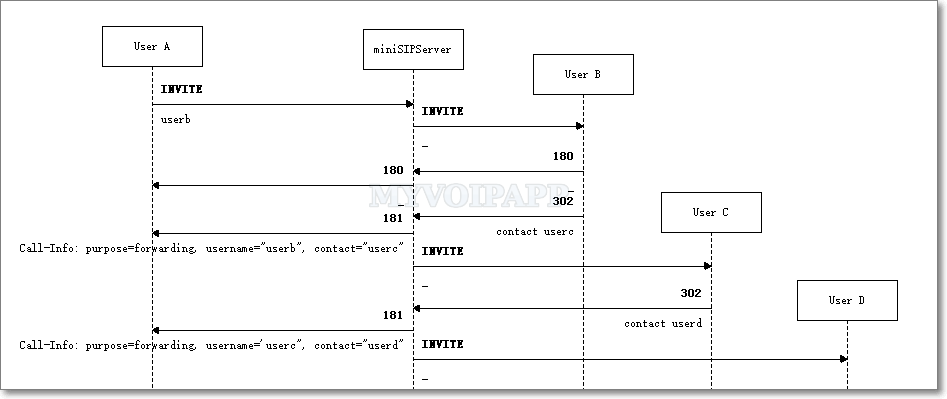
miniSIPServer can send 181 “Call Is Being Forwarded” messages back to the caller side to update it that callee side is being forwarding. In the 181 messages, miniSIPServer will add a Call-Info header to indicate the forwarding information. Please refer to the figure below.
In this figure, there are two forwardings, (1) user B is being forwarded to user C; and (2) user C is being forwarded to user D.
The Call-Info header of the 181 message will indicate (1) the call is being forwarded, (2) who is being forwarded, and (3) who is being forwarded to. Please refer to the Call-Info header of the first 181 message which indicates user B is being forwarded to user C.
When miniSIPServer sends out SIP messages, such as REGISTER or INVITE messages, to VoIP providers, it will add a parameter ‘user=phone’ after Request-URI. It is required by China Mobile network. In most scenarios, it is no problem since URI parameters are defined in RFC3261.
But unfortunately, some customers recently reported us that their miniSIPServers failed to connect to their VoIP providers because these providers’ servers cannot recognize parameters of Request-URI. Of course, the easy way is that the VoIP providers upgrade their servers to fit RFC3261, then everybody will be comfortable.
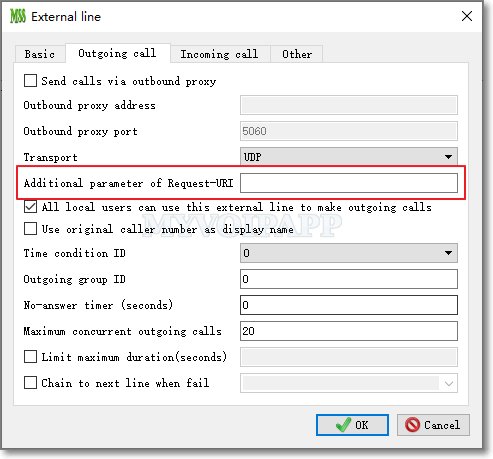
Some of them insist on their status and refuse to make any change. Then we have to make a change in external lines’ configuration. Please refer to the figure below.
We add a new item “additional parameter of Request URI” in external lines’ outgoing call configuration. Then customers can control the parameter according to their real network environments.
In another way, if the GUI is in Chinese which means the customer might configure miniSIPServer for China networks, the default value of such item will be “user=phone”. Otherwise, its default value is blank. We think it will flexibly fit the network requirements around the world.
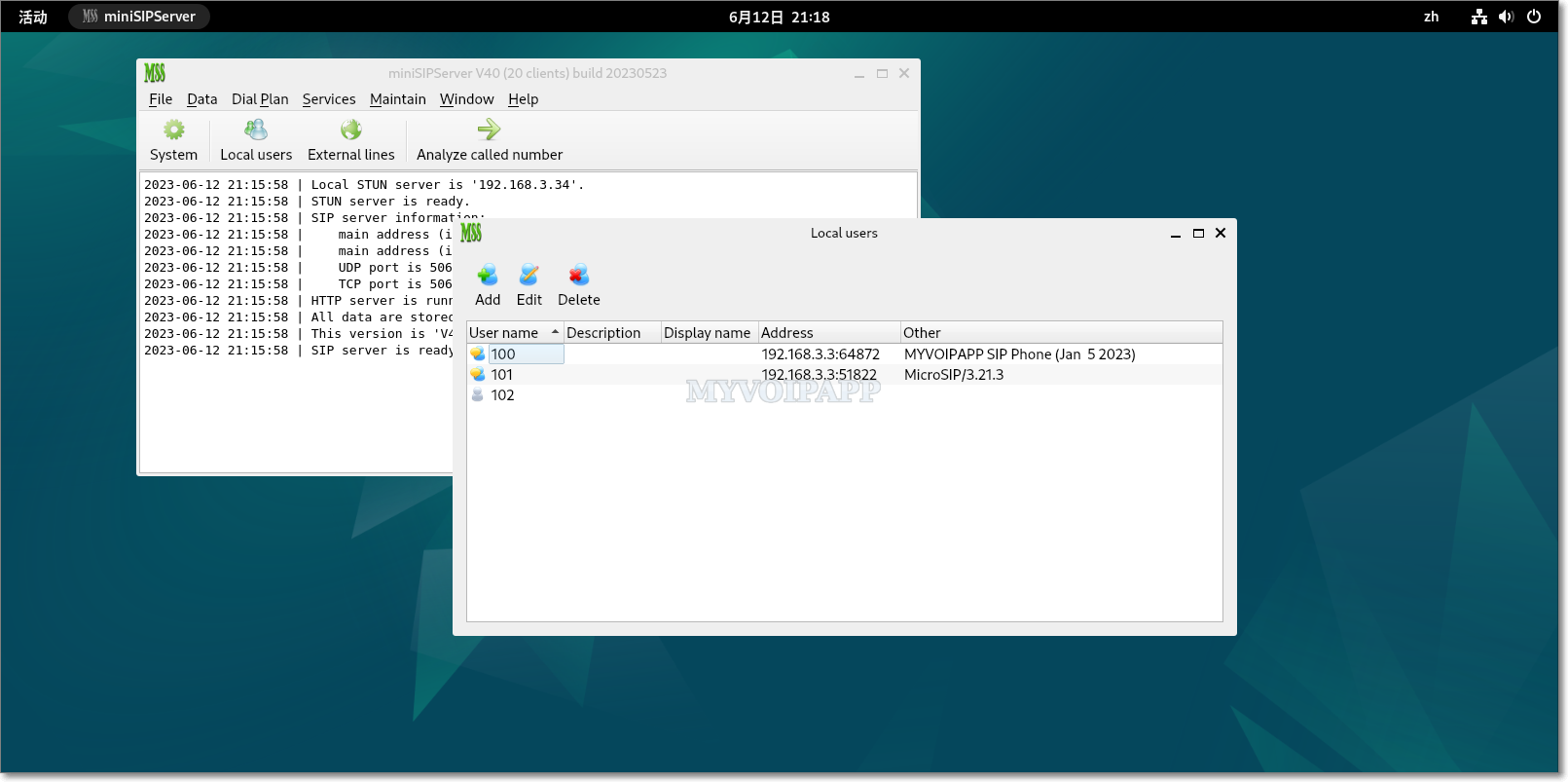
Debian 12 (bookworm) was released. It is the latest stable version and will be widely deployed in business environment absolutely. So we run and test the latest miniSIPServer on this system as usual. Of course, the result is perfect.
Please refer to the figure below.
If you want to build a VoIP system on Linux system, Debian 12 is a good choice.
Please refer to our online document for more details about how to install and run miniSIPServer on Debian systems. And I’m sure you’ll like the combination of Debian and miniSIPServer.
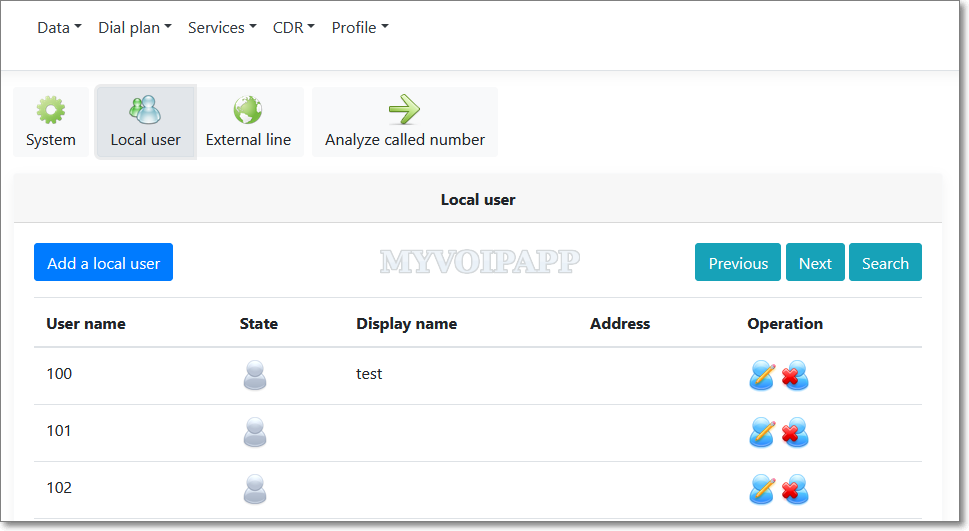
We upgrade web UI for miniSIPServer, including cloud miniSIPServer and local miniSIPServer. The new web UI is quite like GUI of local miniSIPServer. Please refer to the figure below.
We hope users who are familiar with local miniSIPServers can enjoy it and experience the cloud miniSIPServer system quickly.
OpenSSL released new versions to fix several serious security problems. miniSIPServer uses the OpenSSL library to provide the SIP over TLS feature and we upgrade miniSIPServer to V40 (20230221) versions which use the latest OpenSSL library.
If you have deployed “SIP over TLS” in your VoIP network, we strongly recommend that you upgrade miniSIPServer to the latest versions.
By default SIP network always uses SIP URI to carry information, such as From, To, and so on. For example:
sip:+8613901088888@ims.bj.chinamobile.com
But for traditional telecommunication networks, they always use E.164 telephone numbers which are different with SIP URI. So ETSI (or 3GPP) defines a new URI, that is TEL URL. For example:
tel:+8613901088888
So when working with IMS networks, there could have two URI formats, SIP URI and TEL URI. miniSIPServer can support both formats, it can process TEL URI of incoming calls automatically, but all outgoing calls always use SIP URI formats.
It could be a problem. Fortunately IMS networks consider it very carefully. For example, China Mobile can accept TEL URI and SIP URI with special parameter ‘user=phone‘ which is described below.
If we configure external lines of miniSIPServer to work with China Mobile networks, it can be no problem because miniSIPServer will automatically add ‘user=phone’ to Request-URI. But in some markets, China Mobile requires to establish SIP trunk connections, then it could be a problem. miniSIPServer will not add ‘user=phone’ in Request-URI since we think it is a ‘server to server’ scenario.
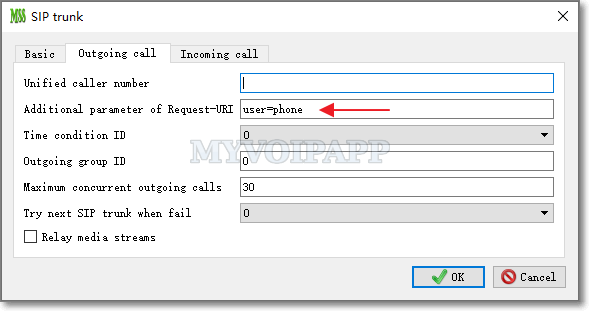
To fix that, we add a ‘additional parameter of Request-URI’ parameter in SIP trunk outgoing call configuration. Please refer to the figure below.
As we know, RFC3262 defines SIP reliability of provisional responses. It is an old feature and miniSIPServer ( both local versions and cloud versions) can support it for a long time. When working with traditional telcom carriers, this feature is mandatory, that means carriers will reject all incoming calls if they cannot support reliability of provisional responses.
RFC3262 defines a “100rel” parameter to indicate reliability of provisional responses, so we call it “100rel” capability. In normal, when invoking a call, the caller should make itself clearly that it can support “100rel” capability, and of course, the callee side should also make itself clearly that it requires to use “100rel” capability.
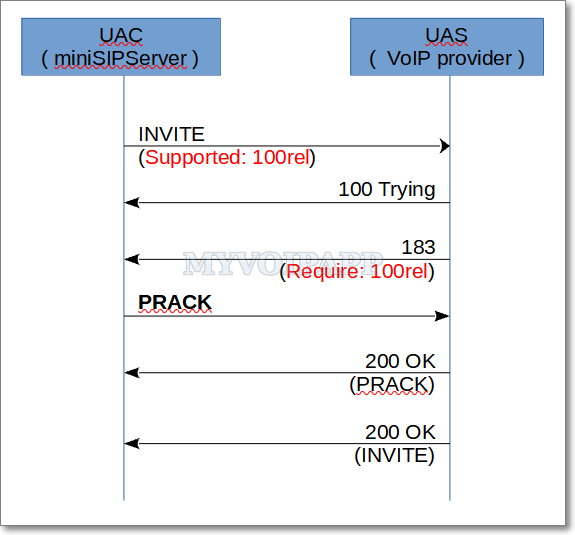
Basic call flow with 100rel
In the RFC3262, we can get following details:
…… the initial request contained a Supported or Require header field listing 100rel, and that there is a provisional response to be sent reliably. ……
UAS core … MUST contain a Require header field containing the option tag 100rel, and MUST include an RSeq header field.
Then both sides can establish reliability of provisional responses. Above figure describes the basic call flow. When UAC receives a 18x message which is a provisional response, UAC should send a PRACK message back to tell UAS that UAC has received its 18x message.
This is not a complex call procedure. We thought it wasn’t until several days ago. One of our cloud miniSIPServer customers reported he cannot make calls out. Then we traced his calls and get following call flow described below.
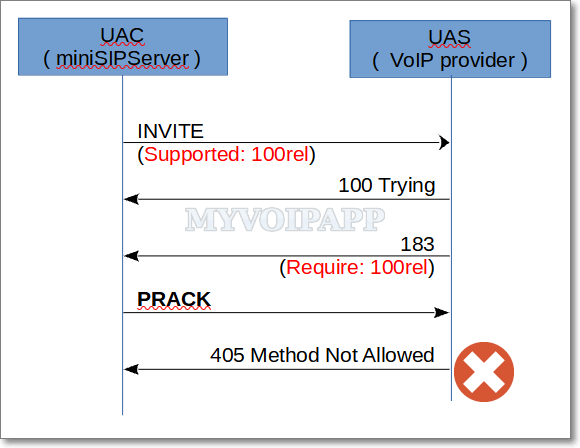
405 error in a 100rel procedure
Unbelievable …… this voip provider requires “100rel” in its 183 messages, but once miniSIPServer sends PRACK messages to confirm that, it returns “405 method not allowed” to reject them, and it causes every call failed.
Why?! If it cannot accept or support PRACK messages, why does it require “100rel” in its provisional responses?
It is quite easy to fix that. Just remove its “require 100rel” from 18x messages, miniSIPServer will not send PRACK messages back. But unfortunately, the team of this voip provider doesn’t know how to do that.
Our customer is blocked and his service has to be stopped. In another way, I personally think some VoIP providers use public open source servers, such as Asterisk, FreeSwitch, and so on, to build their solutions, maybe they don’t have enough experts to understand what they built.
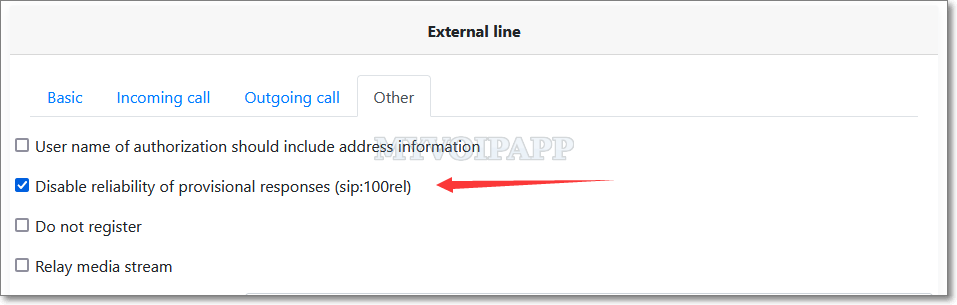
So we update miniSIPServer to add an option in external lines configuration to disable reliability of provisional responses. Please refer to the figure below.
disable reliability of provisional responses
If you check this item, the INVITE messages sent from miniSIPServer will not have “support 100rel” parameter. Once you meet such a ridiculous VoIP provider, you can try this.
In the SIP session, we can set ‘ptime’ parameter of SDP to negotiate RTP packages between two call parties. If one side has different idea about the RTP package size, it can send its own ‘ptime’ parameter back with the value it wishs. But the world is so complex, some SIP devices don’t care ‘ptime’ paramter and they don’t tell other sides which values they like, they just send RTP packages back directly. It could cause problem.
For example, as we know, ‘call recording‘ service requires miniSIPServer to mix two audio streams from both call parties. In order to make the work easy, miniSIPServer will set ‘ptime’ to 20 which means the call parties should send their audio streams in RTP packages every 20 milliseconds, then miniSIPServer get two packages every 20 milliseconds and mix them into local audio files. Now surprised, some devices send RTP packages every 30 milliseconds, some send RTP packages every 40 milliseconds. When miniSIPServer has to mix these packages, some bytes have to been lost since the time is different and the package size is different too. It makes the audio quality of local audio files very poor.
Of course, the perfect solution is all SIP devices respect ‘ptime’ parameter, but we cannot count on it.
So miniSIPServer is upgraded to V40 (build 20220922) to fix it. The new version will try to cache RTP packages of both sides and smooth the mixing procedures. And we have to say that it will increase the workload of miniSIPServer.