miniSIPServer V6.1 or above can support writing IVR application in XML file. The latest "Automated attendant" service is writen with IVR_XML, we will describe auto-attendant service and IVR_XML together in this document.
Automated attendant (also auto-attendant) service allows callers to be automatically transferred to an extension without any intervention of a receptionist. For example, auto-attendant feature maybe looks like this "welcome to xxx company. If you want to contact market department, please press 1; Contact support department, please press 2; or just press extension number directly".
Below figure describes a basic network topology for auto-attendant deployment.
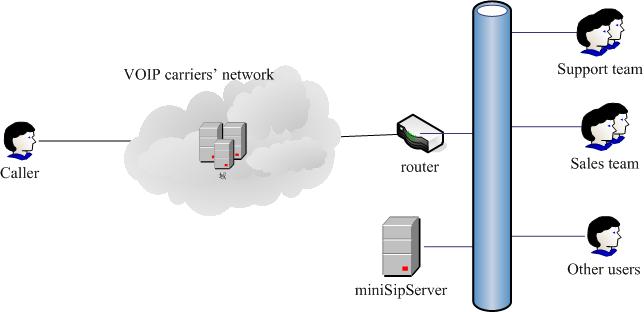
Before you deploy this feature, please confirm you have a VoIP provider account or VoIP gateways to connect outside users.
Here we connect a SIP account in "external line" configuration and enable "auto attendant" at the same time.
Please click menu "data / external lines" and configure an external line.
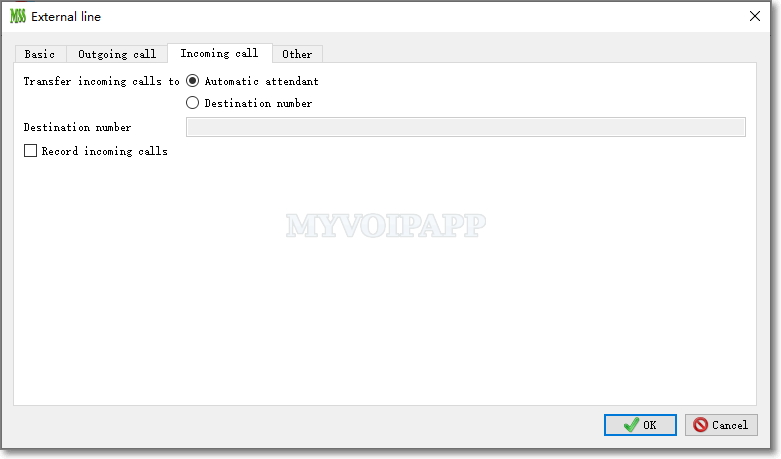
In above figure, we assume the external line number assigned by your VOIP carriers is "2000". The most important is that incoming calls must be transferred to "automatic attendant".
After that, when outside caller or person call "2000", they will hear "Welcome, please enter extension number" announcement and miniSIPServer will route this call to the extension according to their input extension number.
As we have described before, the default announcement for auto-attendant in miniSIPServer is just "Welcome, please enter extension number". In most deployment, we want to change this announcement to our own announcement, such as "Welcome to xxx company, please enter 1 to sales team, enter 2 to support team, or please enter extension number directly".
Can we do that? Yes, of course.
3.1 Customize our own announcement
In miniSIPServer install directory, there is an announcement sub-directory whose name is "mss_ann". In that directory, there is a WAV file "0a080001.wav". You can replace it with your own announcement. We have to mention it here that the audio codec format must be "G.711A, 8000HZ, 7kb/second".
Please refer to our online document "How to record our own audio file" for details.
3.2 Transfer call
In our example, when caller users press "1", we want to transfer the call to sales team. We assume extensions "100", "101" and "102" belong to sales team. We want all these extensions ringing at the same time. Then, we can configure miniSIPServer as below:
- Add local users (extensions) "100", "101" and "102".
- For all of them, please enable ringing-group service and assign the same ring group ID to them.
The default IVR-XML file of auto-attendant is 'aa.xml' which can be found in 'ivrXML', we can refine it with following modification:
    <action name="inputForMenu1" method="input">
        <digit value="1"  nextaction="connectSalesTeam" />
        <digit value="11" nextaction="connectDISA" />
        <digit nextaction="connectExtension" />
    </action>

    <action name="connectSalesTeam" method="callto">
        <destination>100</destination>
    </action>
Then, all these extensions will ring at the same time when caller press "1".
Please pay attention that it is not a good idea to update the default 'aa.xml' file directly, it is better to save your own 'aa.xml' file in application data path.
3.3 Multi-menus and IVR_XML file
In previous scenario, we just establish a simple auto-attendant. It cannot support multi-levels voice menus. For example, if user press '1', we maybe want to continue prompt "Contact Asia market department, press 1; Contact Europe market department, press 2; ...".
It is very easy to provide multi-menus by editing IVR_XML service file 'aa.xml'.
For example, we can update this XML file to support above multi-menus.
    <action name="inputForMenu1" method="input">
        <digit value="1"  nextaction="menu2" />
    </action>

    <action name="menu2" method="playandwaitinput">
           <playaudio>
               <id>0a080002</id>
           </playaudio>

           <minnumofdigits>1</minnumofdigits>
           <maxnumofdigits>1</maxnumofdigits>
           <enddigit>#</enddigit>
    </action>

    <action name="inputForMenu2" method="input">
        <digit value="1" nextaction="contactAsiaMarket" />
        <digit value="2" nextaction="contactEuropeMarket" />
        <digit nextaction="menu2" />
    </action>

    <action name="contactAsiaMarket" method="callto">
        <destination>100</destination>
    </action>

    <action name="contactEuropeMarket" method="callto">
        <destination>101</destination>
    </action>
You can see it will be very easy to customize your own IVR process if you are familar with XML format. Please click here to get more details about miniSIPServer IVR-XML.
3.4 Different IVRs
Sometimes we need deploy different IVRs for different external lines or incoming calls. miniSIPServer can trigger different IVR according to different called number.
Please click menu "services / IVR services" to add different records to trigger different IVRs. Following figure describes a simple scenario: if the called number of incoming call is "111", IVR-XML file "aa_test.xml" will be loaded and triggered IVR process.
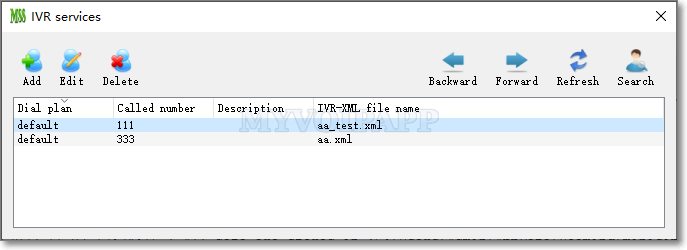
Please refer to following table for details about this configuration:
| Item | Description |
|---|---|
| Dial plan* | The "dial plan" name for incoming calls. Different local users or SIP trunks can have different "dial plan" name. If they are not indicated, the default value is always "default". |
| Called number* | The called number of incoming call. miniSIPServer will trigger different IVR process according to different "dial plan" and "called number" of incoming calls. |
| Description | Description of current record. |
| IVR-XML file name | IVR-XML file name. Please pay attention that it is just file name and doesn't include the directory path. System's own IVR-XML files are saved in the "ivrXML" subdirectory where miniSIPServer is installed. Customized IVR-XML files should be saved in "ivrXML" subdirectory which can be found in AppData directory. For example, the IVR-XML file "aa_test.xml" might be saved as "C:\Users\your_name\AppData\Roaming\minisipserver\ivrXML\aa_test.xml". |