MSS V6.5 updated to support “speed-dialing” feature

V6.5 has been upgraded to support “speed dialing” feature.

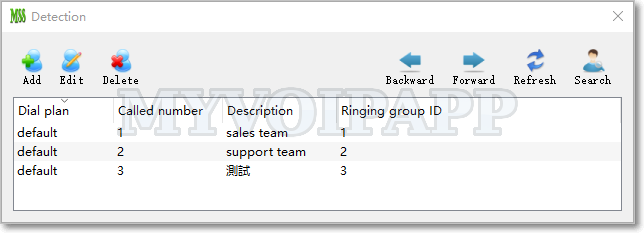
In fact, previous versions can also support “speed dialing” feature by using “dial plan” functions. To do that, customers need make configurations with several tables, it could be difficult. With the new version, we separate a independent table to configure “speed dial” and it is so easy to support it.

Please refer to our document for more details about this feature:

http://www.myvoipapp.com/docs/mss_services/speed-dial/index.html

Trigger different IVR for different incoming calls

miniSipServer is upgraded to V6.5 to support different IVR for different incoming calls.

It is very easy to configure MSS to do that, please refer to online document:

http://www.myvoipapp.com/docs/mss_services/auto_attendant/index.html#multi-ivr

For example, if we want to trigger different IVR for another external line (such as “1234″), we can configure the “IVR services” with following record:

dial plan = default
Called number = 1234  <--This is the external line name/account
IVR-XML file name = aa2.xml <--your own IVR-XML file

Run as windows service

Some customers often ask us how to run miniSipServer as windows service?

It is a interesting topic. After research, we think it is very reasonable to run miniSipServer as windows service. For example, the server could be reboot for some exception, so administrator hope miniSipServer can auto-start together and GUI is unnecessary once the IP-PBX has been configured successfully.

With the release of version 6.2.1, our customers can run miniSipServer as windows service now.

After install new miniSipServer, we can find a new exe file whose name is ‘msscli.exe’. It is a command line application without GUI interface. In fact, ‘msscli.exe’ has the same SIP server core with ‘mss.exe’ which is the GUI version.

In another way, we need ‘sc.exe’ command to create windows service. ‘sc.exe’ is widows own application.

We assume that miniSipServer is installed in directory ‘d:\myvoipapp\minisipserver’, then we can begin now:

To create a windows service:

sc create minisipserver binPath= "d:\myvoipapp\miniSipServer\msscli.exe" start= auto depend= tcpip

Note: the option name includes equal sign and blank space sign. We can use miniSipServer web management system to administrate MSS. Please refer to following document for details.

http://www.myvoipapp.com/docs/mss_services/web_management/index.html

BTW, If run as windows service, the web management system will always start-up even without administrator password.

To start miniSipServer service:

sc start minisipserver

To stop miniSipServer service:

sc stop minisipserver

To delete miniSipServer service:

sc delete minisipserver

We need mention that you MUST stop and delete miniSipServer service firstly if you want to install or upgrade a new miniSipServer version.

The most easy-to-use IP-PBX for Ubuntu/Linux

If you have tried miniSipServer on Windows platform, you can find it is so easy to configure or manage a IP-PBX because miniSipServer provides a perfect GUI interface.

You can find it is very easy to do that on Ubuntu/Linux because miniSipServer can support GUI interface on Ubuntu/Linux now!  WINE is unnecessary now!

Please visit our download page to download miniSipServer .deb packages according to your requirements:

http://www.myvoipapp.com/download

After you download .deb file from our website, please click (or double-click) it to install MSS. No more actions! So easy, so funny.

After you finish your install, you will find miniSipServer at “Applications / Internet” group.

Following figure is a screenshot of MSS running on Kubuntu:

MSS main windows on Kubuntu

In another way, if you just want to run a command line sip server, you can also go to directory “/opt/sipserver” and find “msscli” which is a command-line miniSipServer and has the same core with GUI-miniSipServer.  You can manage and configure it through web interface.

How to send instand messages between SIP servers

One of our customer has two office branch in different cities and two MSS have been deployed. Following figure describe the network topology:

Network topology

The extensions of MSS1 are 1xx, such as 100,101, and so on.

The extensions of MSS2 are 2xx, such as 200, 201, and so on.

With previous MSS versions, it is no problem to send/receive instant messages between local users. But it cannot send instant messages to the extensions of another SIP server.

So we upgrade MSS to V6.1.5 to support instant messages between SIP servers.

To do that, we need establish SIP trunk between these SIP servers. Once you can make calls to the extensions of another SIP server (MSS), it will be no problem to send instant messages to them.

That means we need configure MSS with (1) peer server configurations, (2) Dial plan configurations which we have described in “how to use SIP trunk” document. Please refer to following document for details of SIP trunk:

http://www.myvoipapp.com/blog/2011/05/02/sip-trunk/


Trial duration is 30 days now

Local miniSipServer (stable) is upgraded to V6.1.4.

In this version, trial duration is changed from 20 days to 30 days. Some customers need more time to test MSS full features. We think it is very reasonable, so V6.1.4 or higher can support more trial duration.

In another way, this version is updated to support “direction” parameter in PRESENCE NOTIFY message which is very necessary for call center applications. This parameter is used to indicate the operator current call is outgoing or incoming.

Upload customized audio file

Cloud-MSS is upgraded to support uploading customized audio file.

In auto-attendant or voice-mail features, customers often hope to use their own audio files. It is very easy to replace system audio files in local-MSS. But in cloud-MSS, it has little problem, such as file transferred through internet, etc.

With the new version, customers can upload audio file through HTTP. Of course, the audio file should have the same format same with local-MSS required.

After sign into your cloud-MSS account, please follow the steps described in below figure:

Add system audio file into cloud-mss

We need mention that please be paitent because cloud-MSS will try to download the audio file from your HTTP URL immediately. It could be slow if the network is not very good.

SIP softphone SDK from our partner

Gianfranco, one of our partners, released a new softphone SDK. This SDK provides full SIP features, such as HOLD, Transfer, and so on. It works as .net component or .com component. It is easy to build a new softphone base on this SDK.

Most important, it has been tested with lots of SIP servers or proxy, such as our SIP server (miniSipServer), Asterisk, OpenSER and so on.

If you are interesting in building your own SIP softphone, this SDK could be a very good choice for you.

The official website is http://www.lullabysdk.com/

INFO-DTMF

miniSipServer V6 is upgraded to V6.1.3. This version can support SIP INFO message to transport DTMF signals.

Some VoIP carriers’ servers or VoIP gateway can only support this INFO message to transport DTMF signals which are very necessary for IVR services, such as auto-attendant.

There are several content type in INFO message to transfer DTMF. MSS can support “application/dtmf-relay” content type.

Now, MSS can support INFO and RFC2833 for DTMF signals.